
Seagate Expansion · Desktop Drive
Seagate Expansion Desktop Drive
Authorized Reseller · Best Pricing · Expert Guidance
Larger capacities for extensive backups and media libraries — easy-to-use, high-capacity, plug-and-play desktop storage.
A full-size mechanism reaches capacities a portable drive cannot
Your device recognizes the drive automatically on connection
Works directly with the built-in backup tools on Mac and Windows
Works on both macOS and Windows without file size limits
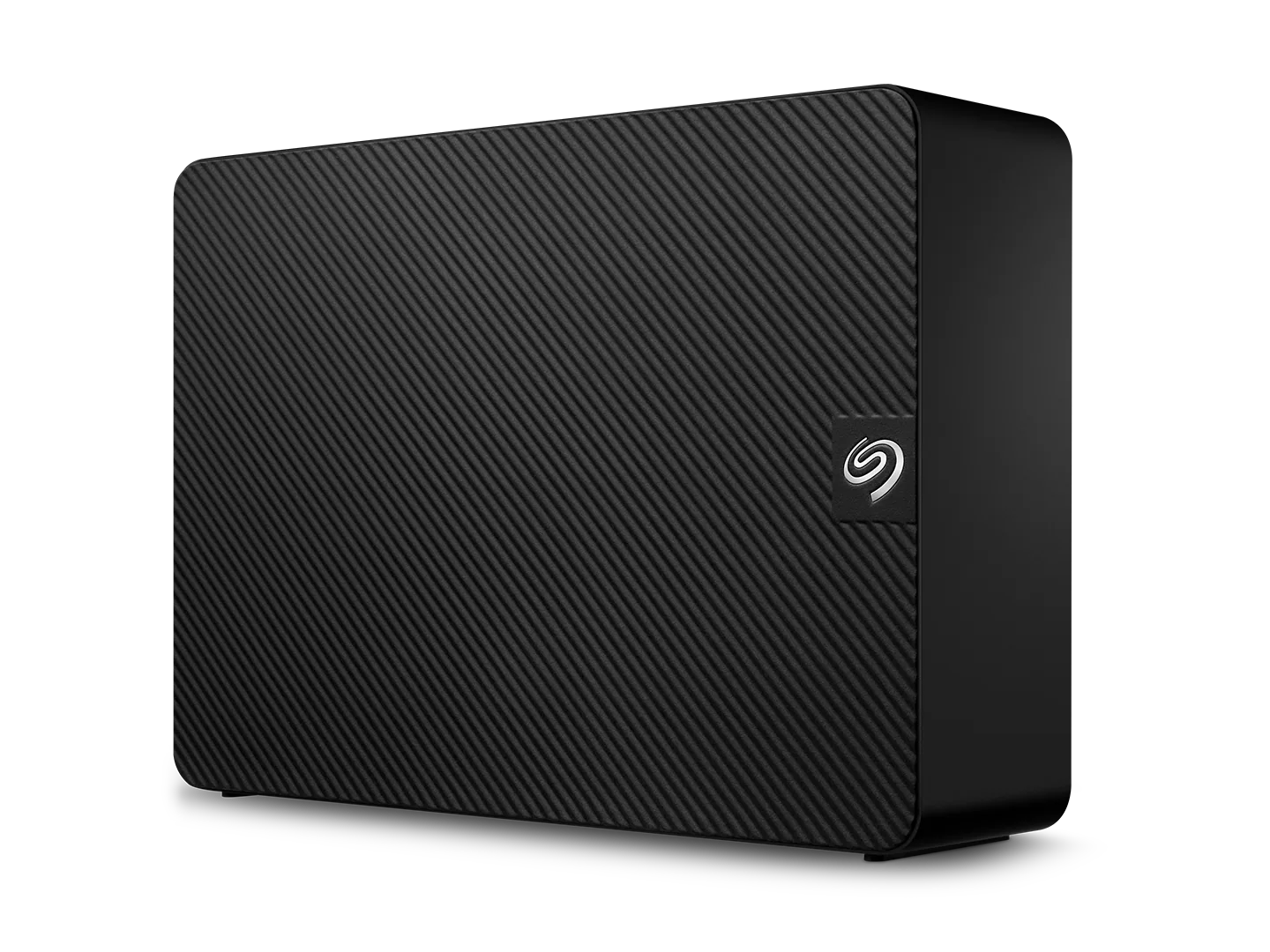
What is the Seagate Expansion Desktop Drive?
Seagate desktop drives provide larger capacities for extensive backups and media, and the Expansion Desktop Drive is the plug-and-play member of that group.
Because it uses a 3.5-inch mechanism and its own external power supply rather than drawing power over USB, it reaches capacities a bus-powered portable drive cannot — which is what makes it the right unit for a full-system backup target or a media library that lives on a desk.
Setup is the same as any Seagate external drive: connect the drive to your computer using the included USB cable and your device should recognize it automatically.
For optimal performance you may want to reformat the drive to match your operating system: exFAT for cross-platform use, NTFS for Windows or APFS for macOS.
When should you choose a desktop drive over a portable one?
Three situations where the extra power brick is worth it.
Whole-System Backups
Desktop drives provide larger capacities for extensive backups — enough headroom for a full system image plus version history rather than just your documents.
Media Libraries
Photo, video and music libraries grow faster than laptop storage. A desktop drive gives them somewhere permanent to live without constant housekeeping.
Best Cost per Terabyte
The 3.5-inch mechanism is the cheapest way to buy capacity. For archiving and long-term storage, that matters more than transfer speed.
Why does the Expansion Desktop Drive need its own power supply?
A 3.5-inch mechanism with its own power supply — the capacity option in the external range.
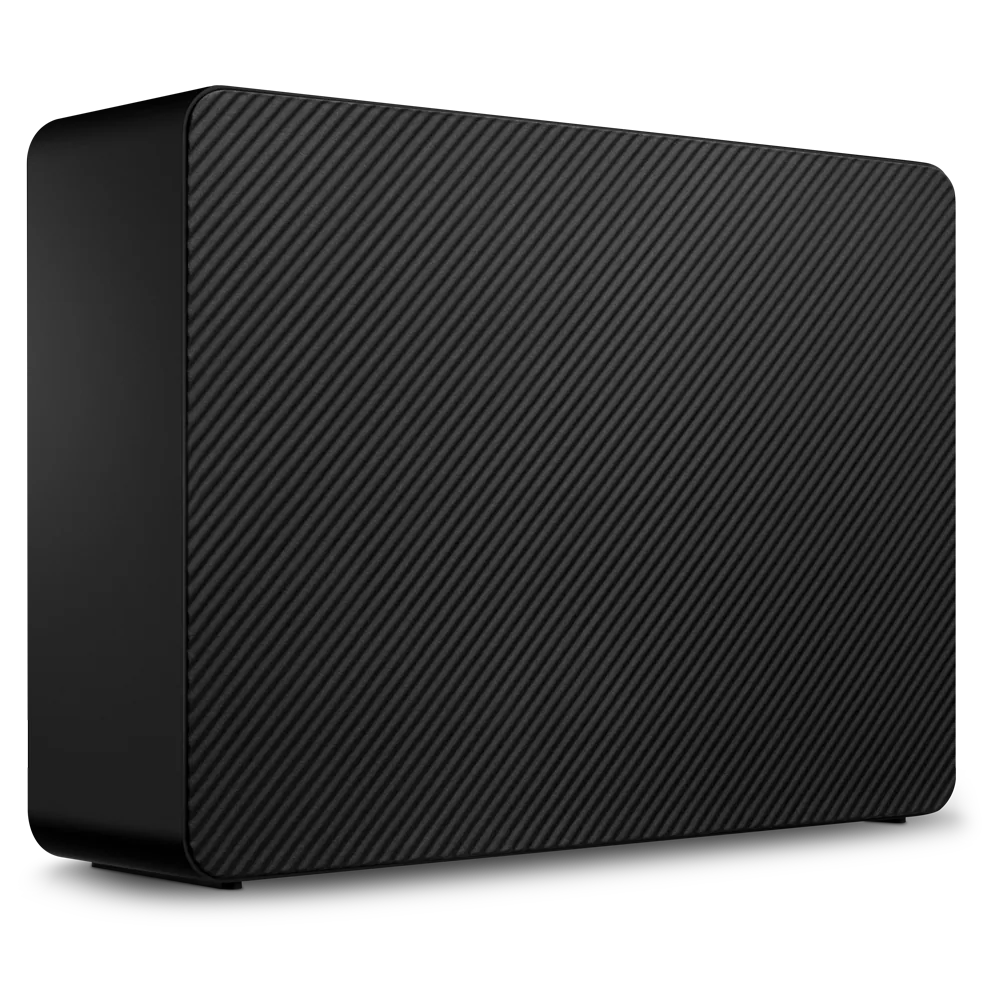
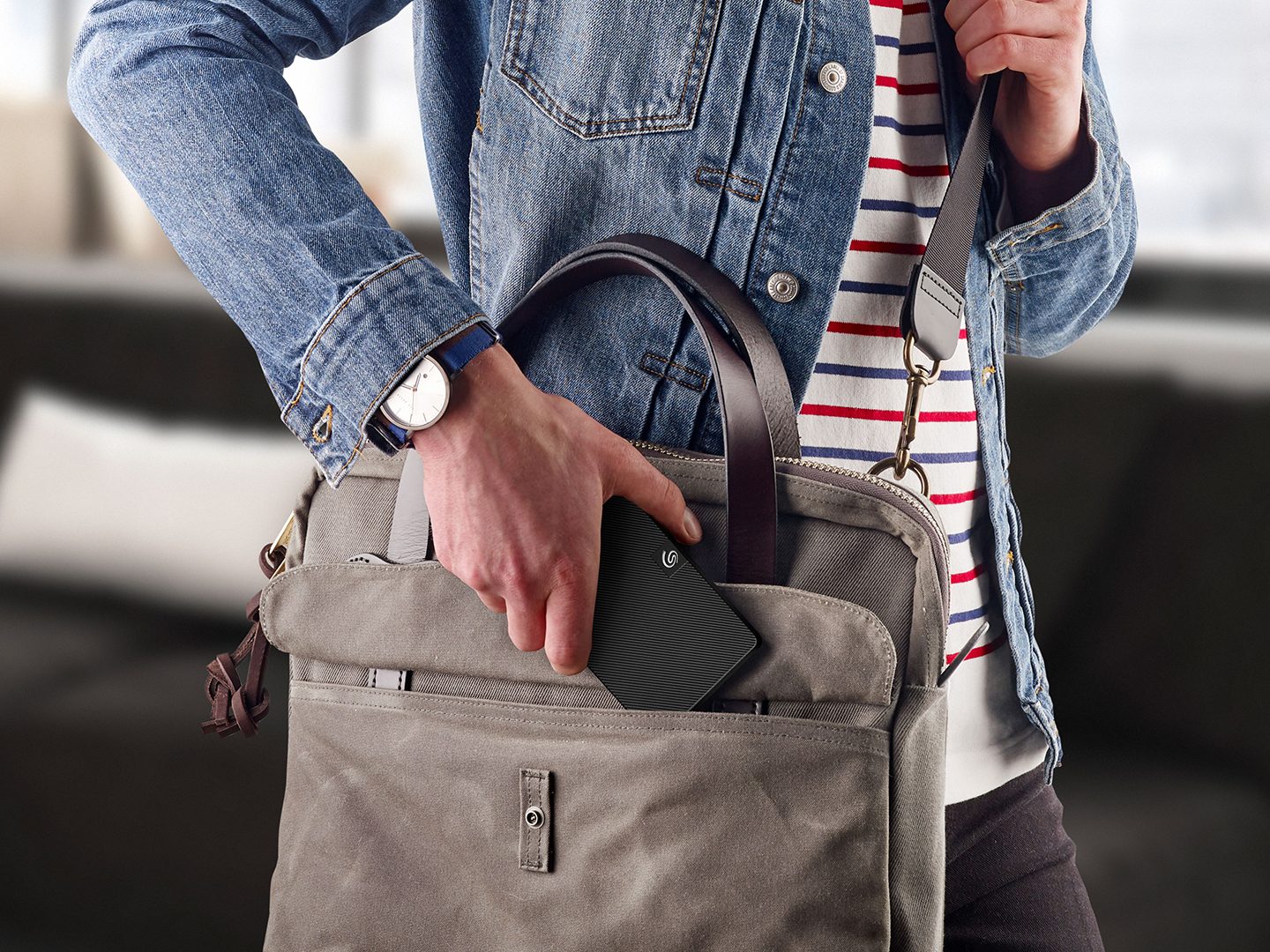
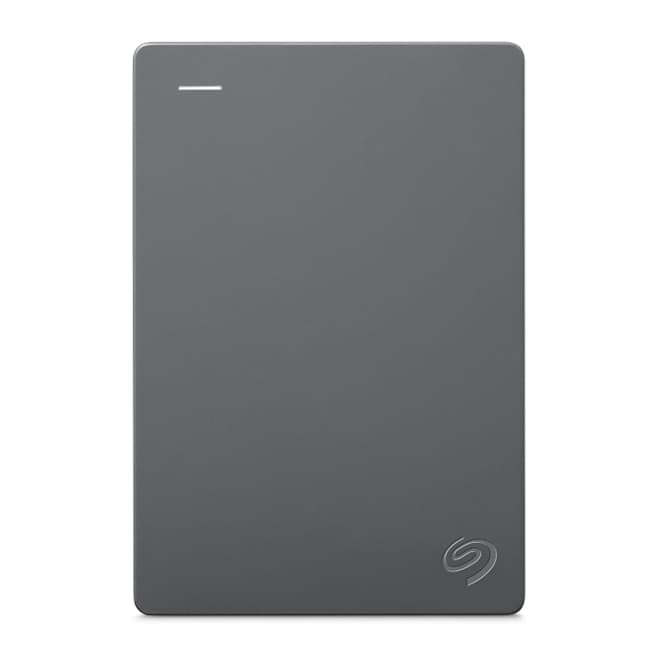
Other Seagate external drives alongside the Expansion Desktop
Portable, desktop, professional and gaming external storage.
How do you back up a computer to an external desktop drive?
How to build a backup routine that actually protects your data.
Expansion Desktop Drive: frequently asked questions
Setup, backup and compatibility answers for the Expansion Desktop line.
Seagate offers a diverse range of external hard drives to meet various needs. Portable drives are lightweight for on-the-go storage, while desktop drives provide larger capacities for extensive backups and media. Specialized gaming drives enhance storage and performance for Xbox® and PlayStation®. Seagate also offers themed special edition external hard drives with unique designs, versatile personal storage drives for everyday use and high-capacity professional storage drives for demanding tasks.
Connect your external hard drive. Go to Settings > System > Storage > Advanced storage settings > Backup options. Click Add a drive and select your external drive. Enable File History for automatic backups, or use Backup and Restore (Windows 7) for a full system image.
Open Settings > Update & Security > Backup. Click Add a drive and choose your external drive. Enable File History to back up files automatically, or use Backup and Restore (Windows 7) for a full system image.
Open System Preferences > Time Machine (System Settings > General > Time Machine on macOS Ventura and later). Click Select Backup Disk and choose your external drive, then turn on Time Machine for automatic backups. Time Machine will back up your files periodically in the background.
Yes. On Mac (macOS Catalina and later), connect your iPhone to your Mac, open Finder, select your device, choose Back up all data to this Mac, then manually move the backup to an external drive. On Windows or older Macs, use iTunes to back up then move the backup folder to an external drive. Third-party software can also perform direct backups.
Connect the drive to your computer. On Windows, open Disk Management, right-click the drive, select Format and choose exFAT. On Mac, open Disk Utility, select the drive, click Erase, choose exFAT then click Erase. Note: exFAT works on both macOS and Windows without file size limits.
On Windows, click the USB/Drive icon in the taskbar, select Eject [Drive Name], wait for the confirmation message then unplug safely. On Mac, open Finder and locate the drive under Devices, click the Eject icon next to the drive name, wait for it to disappear then unplug safely.
On Mac: open Finder and look under Locations in the sidebar; check your desktop if drive display is enabled; open Disk Utility to see if the drive is recognized but not mounted; and check that the cable and ports are working. On Windows: open File Explorer (Windows + E) and check under This PC for the drive under Devices and Drives, then right-click the Start menu and select Disk Management to see if the drive is recognized but not yet formatted or mounted.
Our specialists will help you match capacity, interface and form factor to how you actually work. BlueAlly (DiskDataWorks.com) is an authorized Seagate reseller — call 844-356-5142 or request a quote online.
Buy the Expansion Desktop Drive from an authorized reseller
Our specialists will help you match the Expansion Desktop line to how you actually work — capacity, interface and form factor — and quote authorized-reseller pricing.
Capacity sizing for your library and backup set
Mac, Windows and cross-platform formatting guidance
Interface check (USB-C, USB 3.x, Thunderbolt)
Authorized-reseller pricing with full warranty coverage
Talk to an Expert
with a BlueAlly Solution Architect